Wi-Fi calling not working? Learn the seven most common causes, from a missing E911 address to blocked router ports, and how to fix each one.
Jason works from a basement office where his phone shows one bar on a good day. Wi-Fi calling is the only reason his clients can reach him. Then one Monday, every call fails. The Wi-Fi is fine, and a movie streams upstairs without a hiccup. Yet his phone refuses to place a single call over it.
Sound familiar? Wi-Fi calling not working is frustrating because the internet seems fine. Still, the call won’t connect, the audio cuts out, or the option vanishes from settings. The good news is that most cases come down to a short list of causes. Here are the seven most common ones, and how to fix each.
Wi-Fi calling usually stops working because the feature is off, the E911 address is missing, the router blocks the ports it needs, or the Wi-Fi is weak or busy. A VPN, outdated carrier settings, or a bad handoff between networks can also break it.
What Is Wi-Fi Calling?
Wi-Fi calling lets your phone make regular calls and send texts over a Wi-Fi network instead of a cell tower. It uses your normal number and dialer, so it feels like any other call. It helps most where indoor signal is weak.
When it breaks, people call their carrier. That makes Wi-Fi calling a common ticket for telecom technical support teams at carriers and MVNO brands.
7 Common Causes of Wi-Fi Calling Not Working
Work through these causes in order. The first three are the usual suspects when Wi-Fi calling won’t turn on at all.
1. Wi-Fi Calling Is Off or Not on Your Plan
Fix: Turn on Wi-Fi calling, then confirm your carrier and plan support it.
On an iPhone, go to Settings > Cellular > Wi-Fi Calling. On most Android phones, open the Phone app, tap Settings, then look for Wi-Fi Calling under Calls. The exact menu varies by phone maker.
If the option is missing, your carrier or plan may not offer it. Some prepaid and MVNO plans also ask you to turn it on in your online account, not just on the phone.
2. Missing or Wrong E911 Address
Fix: Add or update your emergency address in your carrier account or phone settings.
In the US, carriers require an emergency (E911) address before Wi-Fi calling will turn on. That’s because 911 calls over Wi-Fi use the address you register, not GPS. T-Mobile, for example, shows error REG09 when the 911 address is missing. If you move or work from a new place, update the address so help reaches the right door.
3. Your Router or Network Blocks Wi-Fi Calling
Fix: Try another Wi-Fi network. If calls work there, check the router.
Wi-Fi calling sends calls through a secure tunnel that needs UDP ports 500 and 4500 open. Some routers, office firewalls, and guest networks block them. Hotel and café Wi-Fi with sign-in pages can block calls, too. One-way audio is a common sign that a firewall is blocking return traffic.
Ask your IT team to open both ports. If you rent your router, support teams at broadband and fixed-line providers can check these settings for you.
4. Weak or Busy Wi-Fi
Fix: Move closer to the router, pause heavy use on the network, or switch to a stronger connection.
Voice is less forgiving than streaming. As a rule of thumb, network vendor Meter suggests keeping round-trip delay at or below 150 ms and jitter at or below 30 ms. Even 1–2% packet loss can cause gaps in the audio. A speed test that shows ping and jitter helps you check. If a big download or video call runs at the same time, pause it and try again.
5. A VPN Is Turned On
Fix: Turn off the VPN and try the call again.
A VPN sends your traffic through another server. That can break the secure link Wi-Fi calling needs. It can also make your carrier think you’re in another country, where Wi-Fi calling may be limited.
6. Outdated SIM, eSIM, or Carrier Settings
Fix: Update your phone and carrier settings, then restart.
On an iPhone, a carrier settings update appears under Settings > General > About when one is ready. On Android, check for system updates. If Wi-Fi calling still fails, your SIM or eSIM profile may need a refresh from the carrier. Our guide to eSIM customer support explains how carriers handle eSIM issues.
7. Calls Drop When You Move Around
Fix: Stay in one area during the call, or use a mesh Wi-Fi system with fast roaming.
Calls can drop when your phone hops between access points or switches from Wi-Fi to cellular. Some older setups break the call tunnel during that handoff. If drops only happen in one spot, that spot may simply be a dead zone.
Wi-Fi Calling Symptoms and Fixes at a Glance
Not sure which cause fits? Match what you see to the likely cause below.
| Symptom | Likely cause | Quick fix |
|---|---|---|
| Wi-Fi Calling option is missing | Plan or carrier doesn’t support it | Check your plan or ask your carrier |
| Error REG09 or “update E911 address” | Missing emergency address | Add your E911 address |
| Won’t connect on hotel or office Wi-Fi | Blocked ports or a sign-in page | Sign in, or use another network |
| One-way audio | Firewall blocking return traffic | Open UDP ports 500 and 4500 |
| Choppy or robotic audio | High jitter or packet loss | Move closer and pause heavy downloads |
| Fails only when a VPN is on | VPN interference | Turn off the VPN |
| Drops when you walk around | Handoff between access points or to cellular | Stay put or use mesh Wi-Fi |
How Support Teams Can Fix Wi-Fi Calling Tickets Faster
For carriers and MVNOs, Wi-Fi calling tickets are tricky. The agent can’t see the customer’s router, and the customer often blames the phone. A clear order of checks saves time on every call.
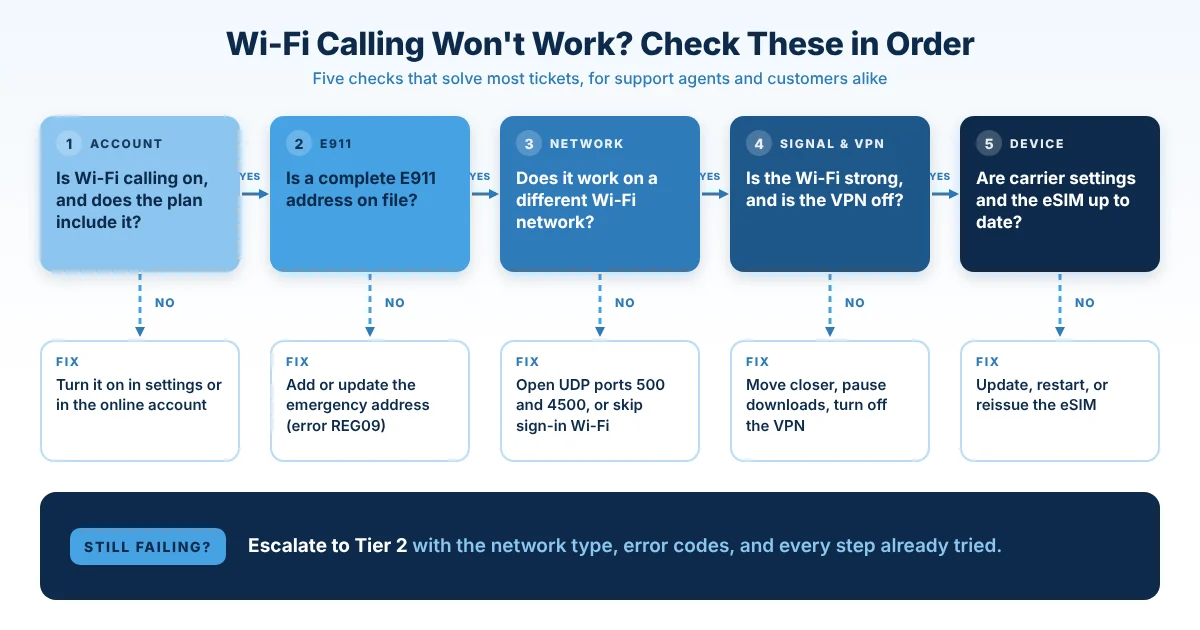 The order of checks that solves most Wi-Fi calling tickets.
- Check the account. Confirm the plan supports Wi-Fi calling and the feature is on.
- Verify the E911 address. Make sure it’s complete and current.
- Ask about the network. Is it home, office, or public Wi-Fi? Is a VPN on? Does another network work?
- Refresh the device. Update carrier settings, restart, and reissue the eSIM if needed.
- Escalate with details. Pass the network type, error codes, and steps already tried to Tier 2.
These tickets aren’t going away. As RCR Wireless reported in January 2026, operators keep investing in Wi-Fi calling to improve indoor coverage. Location accuracy is also under review. In September 2026, the FCC opened an inquiry into modernizing the 911 framework, so E911 checks will matter even more.
To spot weak points, track repeat Wi-Fi calling tickets and first contact resolution. Our guide to telecom technical support KPIs covers which numbers to watch.
Solve Wi-Fi Calling Issues on the First Call
Wi-Fi calling problems are usually simple to fix once someone knows where to look. For carriers and MVNOs, the real challenge is solving them fast, on every shift, at scale. Sequential Tech’s telecom technical support teams handle Tier 1 and Tier 2 troubleshooting for US carriers, MVNOs, and broadband providers, from E911 checks to eSIM refreshes and router issues. Talk to our telecom technical support experts to cut repeat calls and resolve more Wi-Fi calling tickets on the first contact.
Frequently Asked Questions
Why is my Wi-Fi calling not working?
Wi-Fi calling usually fails because the feature is off, your plan doesn’t support it, or your E911 address is missing. It can also fail when the router blocks UDP ports 500 and 4500, the Wi-Fi is weak or busy, a VPN is on, or your carrier settings are out of date.
Why does my phone ask me to update my E911 address?
US carriers require an emergency address before Wi-Fi calling will work. Wi-Fi calls to 911 use the address you register, not GPS, to send help. Add or update the address in your phone’s Wi-Fi calling settings or your carrier account, then try again.
Does a VPN affect Wi-Fi calling?
Yes. A VPN reroutes your traffic, which can break the secure connection Wi-Fi calling needs. It can also make your carrier think you’re outside the country, where Wi-Fi calling may be limited. Turn the VPN off and try the call again.
Why does Wi-Fi calling keep dropping calls?
Wi-Fi calling drops calls when the connection is weak or busy, or when your phone switches between access points or to cellular. High jitter and packet loss also cause gaps. Stay near the router, pause heavy downloads, and try a mesh system if drops happen in one area.
Which ports does Wi-Fi calling use?
Wi-Fi calling uses a secure IPsec tunnel that needs UDP ports 500 and 4500 open on the router or firewall. If either port is blocked, calls may not connect or may have one-way audio. Office and guest networks sometimes block them, so ask your IT team to open both.